Git Reference
Originally published in Chinese on 2022-03-31; this English edition preserves the original scope and technical context.
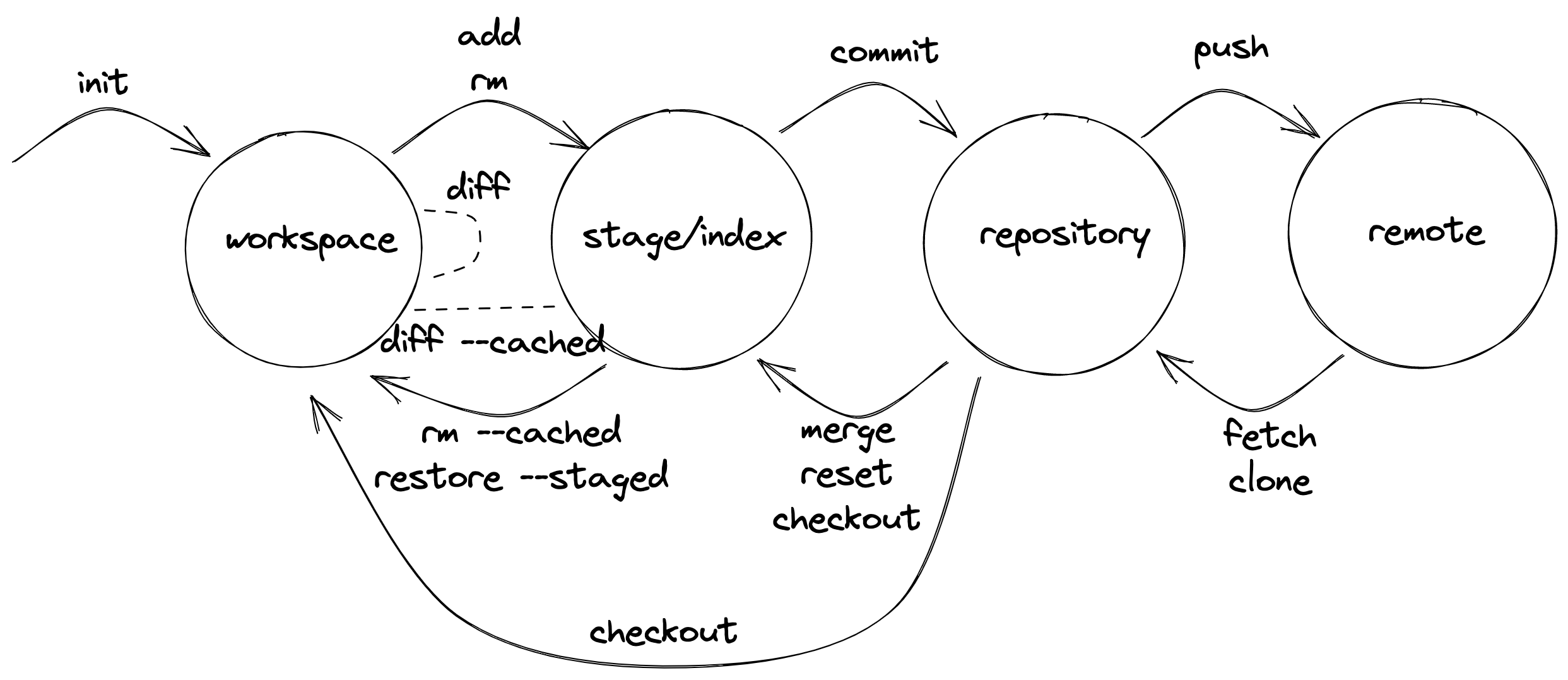
HEAD Usage
HEAD represents the last commit.
HEAD^ represents the second-to-last commit from the end.
HEAD^^ represents the third-to-last commit from the end, and so on.
HEAD~0 represents the last commit.
HEAD~1 represents the second-to-last commit from the end, and so on.
Returning to a Previous Commit
git reflog # Records each update of the local branch in the repository
git reset HEAD@{index} # Returns to a previous commit, leaving changes in the working directory
git reset hash --hard # Adds --hard to ignore all changes to files
Add Some Modifications Based on the Last Commit
git add . # Adds modifications to the staging area.
git commit --amend #
git commit --amend --no-edit # add --no-edit
If the last commit has been pushed to the remote, pushing again requires adding the -f flag.
On top of a previous commit, add some modifications.
`git log` # Find the previous commit to modify
`git rebase -i hash` # Move `HEAD` to the commit to modify
(`vim`) Replace `edit` for the first line, save and exit
# Modify the files
git add .
git commit --amend # Add modifications to the current commit
git rebase --continue # Resume HEAD
Move Uncommitted Modifications to Another Branch
`git reset HEAD~ --soft # Undo the last commit, but keep the file modifications.`
git stash
git checkout another-branch
git stash pop
git add .
git commit -m "your message here"
Merge a Specific Commit onto Another Branch
`git log` # Find the hash of the commit to move.
git checkout another-branch
git cherry-pick $hash # apply the corresponding commit to the current branch
Undo a Specific Commit
To undo a specific commit, you can use the git revert command. This creates a new commit that reverses the changes made by the commit you want to undo.
For example, if you want to undo the commit with the hash abc123, you would run:
sh
git revert abc123
This will create a new commit that reverts the changes made by the commit with hash abc123. You can then push this new commit to your branch:
sh
git push origin your-branch-name
Alternatively, you can use interactive rebase to undo changes in a sequence of commits. This is useful if you want to undo changes in a specific sequence of commits. For example, to undo the last three commits, you would run: sh git rebase -i abc123..def456
Then, in the editor that opens, you would change the word pick to revert for the commits you want to undo. Save and close the file to apply the changes. After rebasing, you can push your changes:
sh
git push origin your-branch-name
Remember to review the changes in the new commit to ensure they are correct.
`git log` # Find the hash of the commit to be reverted
`git revert hash` # Revert the changes and commit directly
Undo a File in a Specific Commit
| Option | Description |
|---|---|
git reset <file> | Resets the specified file to the state of the previous commit. |
git checkout <file> | Exchanges the index and the working tree with the state of the specified file. This effectively discards changes in the working tree. |
git checkout -- <file> | Exchanges the index and the working tree with the state of the specified file, but does not move the HEAD. This allows you to undo changes without affecting the commit history. |
git checkout --patch <file> | Exchanges the index and the working tree with the state of the specified file, showing changes in a patch format. You can then selectively apply or discard changes. |
git checkout --index <file> | Exchanges the index with the state of the specified file, but does not affect the working tree. This is useful for reverting changes in the index without affecting the working tree. |
git checkout --working-tree <file> | Exchanges the working tree with the state of the specified file, but does not affect the index. This is useful for reverting changes in the working tree without affecting the index. |
`git log` # Find the hash of the commit to undo
`git checkout hash -- path/to/file` # Bring back the file to the working directory
git commit -m "your message here"
Release Treatment
git fetch origin
git checkout master
git reset --hard origin/master
git clean -d --force # delete all untracked files and directories in the working directory
or
cd ..
rm -r repo-name
git clone https://some.github.url/repo-name
cd repo-name
Delete branch
git branch -d branch-name # delete local branch
git push origin -d branch-name # delete branch from origin