Using a Mac mini M1 as a Home Software Router
Originally published in Chinese on 2022-02-27; this English edition preserves the original scope and technical context.
[TOC]
This post explains how to transform a power-efficient Mac Mini M1 into a soft router, allowing all devices connected to your Wi-Fi to automatically go abroad without any configuration.
Proxy Client
First, you need to download a proxy client that runs on M1. We recommend using Surge or ClashX Pro, the latter of which is free. For this post, we will use the latter.
Configuration
Generally, Airport will provide a subscription link for Clash. If you don’t have one, you can search for third-party subscription conversion services that convert ssr/v2ray to Clash, and generate a Clash subscription link.
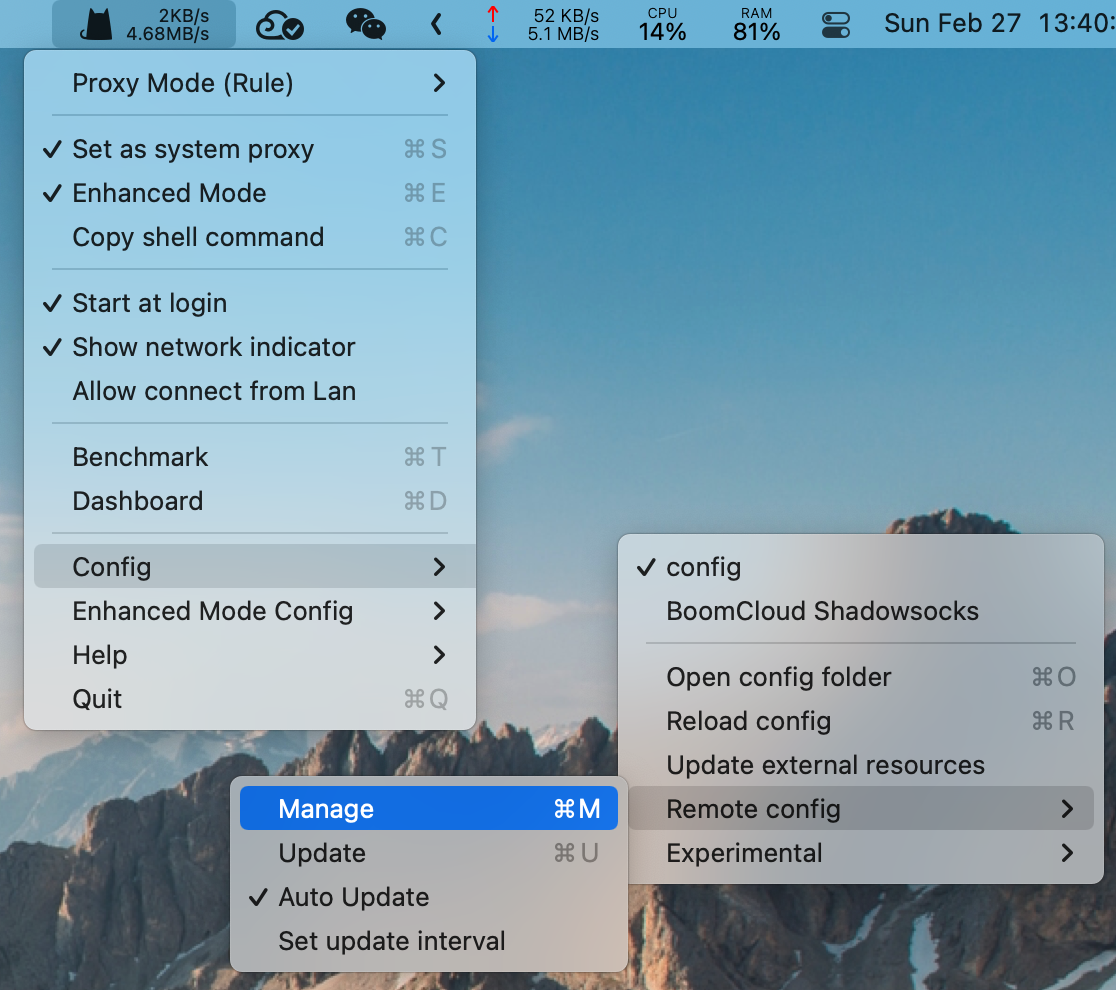
After obtaining the subscription link, click on the Clash icon in the top menu bar -> Config -> Remote config -> Manage to manage the subscription.
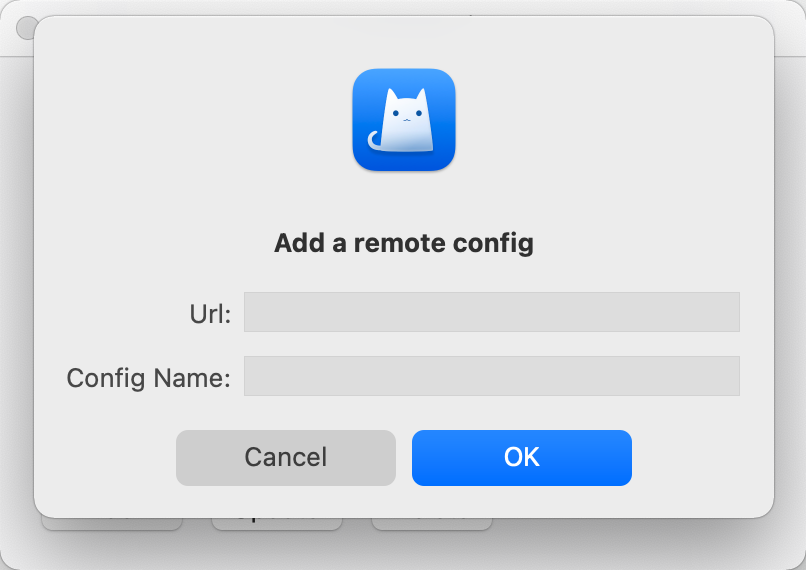
Click “Add” in the top menu bar, input the subscription link in the URL field, and you can leave the Config Name field blank.
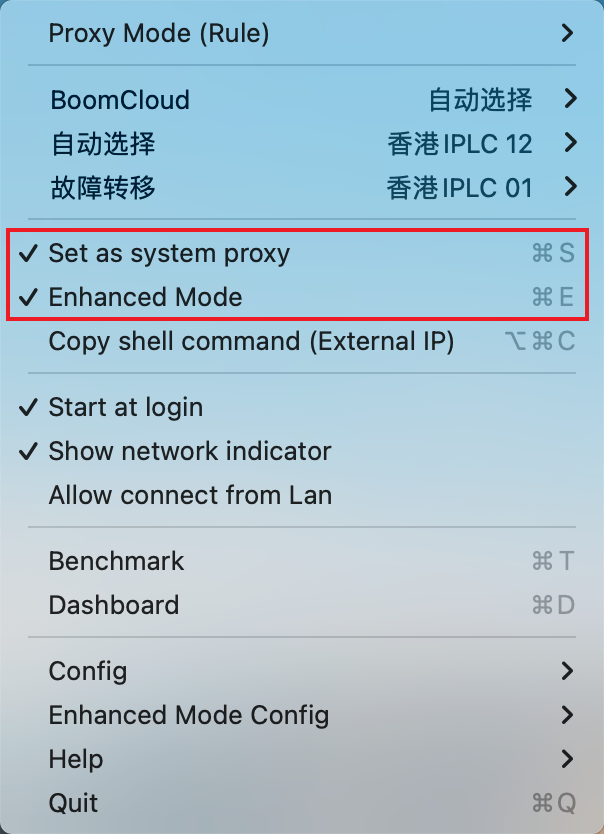
Additionally, you need to check the Set as system proxy and Enhanced Mode options in the Clash icon to enable Mac Mini M1 to act as a gateway.
Gateway Configuration
Now that Mac Mini M1 can successfully go abroad, configure it as a gateway to proxy all traffic on your router. First, connect the router and Mac Mini M1 with a cable. Connecting via Wi-Fi may be less stable.
Now open System Preference -> Network -> Ethernet, in Configure IPv4, disable DHCP and select Manually to set a fixed IP for Mac Mini M1. This IP must be in the same subnet as your router. For example, if your router’s IP is 192.168.0.1, Mac Mini M1’s IP will just need the last digit to be any number from 2 to 255, avoiding conflicts with devices still using DHCP.
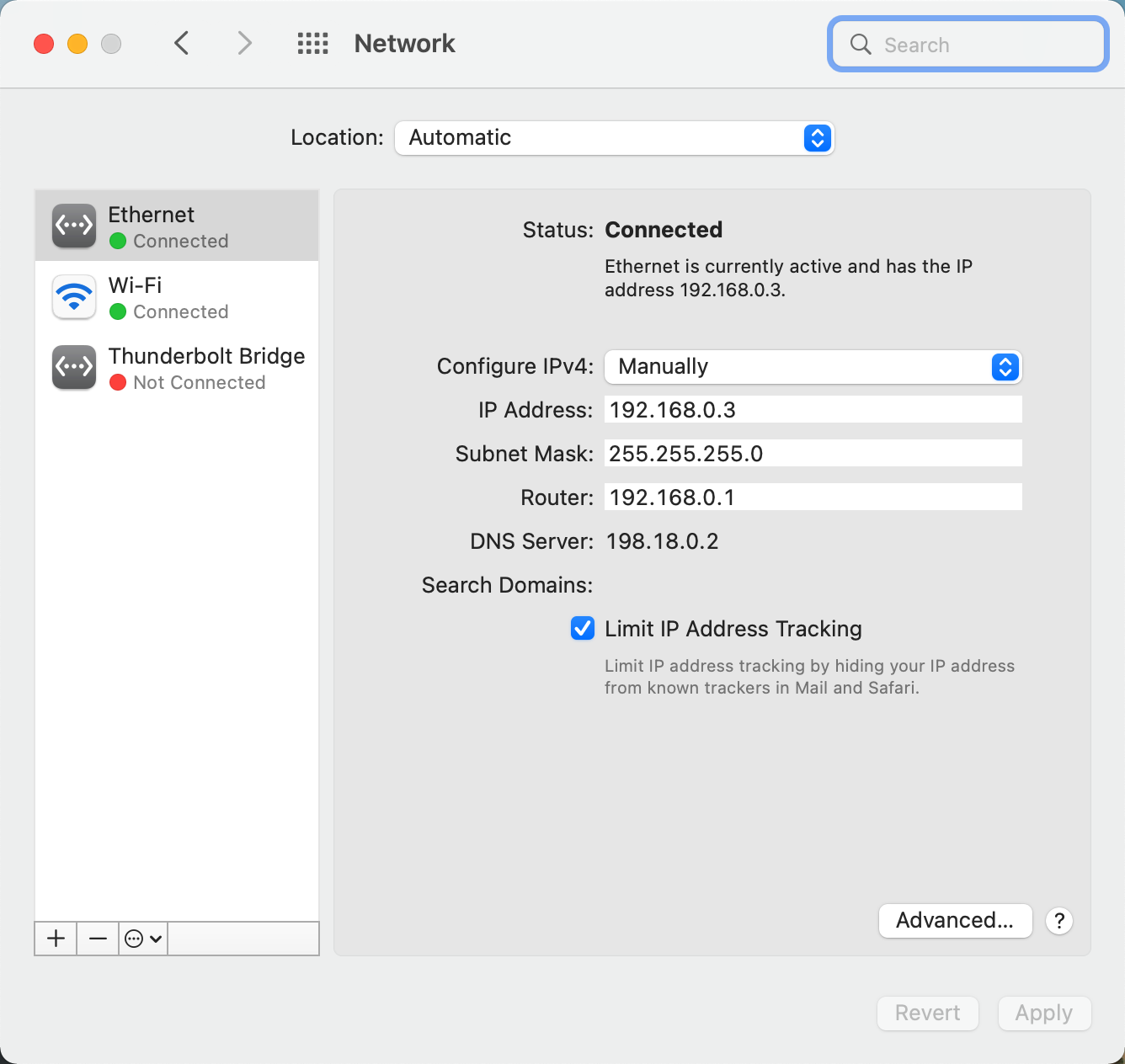
Now open the router’s settings page. Each manufacturer’s page URL is different. For example, the backend URL for Xiaomi routers is miwifi.com. For this example, use tplogin.cn. Select Router Settings -> DHCP Server. Set the gateway, primary DNS server, and secondary DNS server to the IPv4 address of the Mac Mini M1.
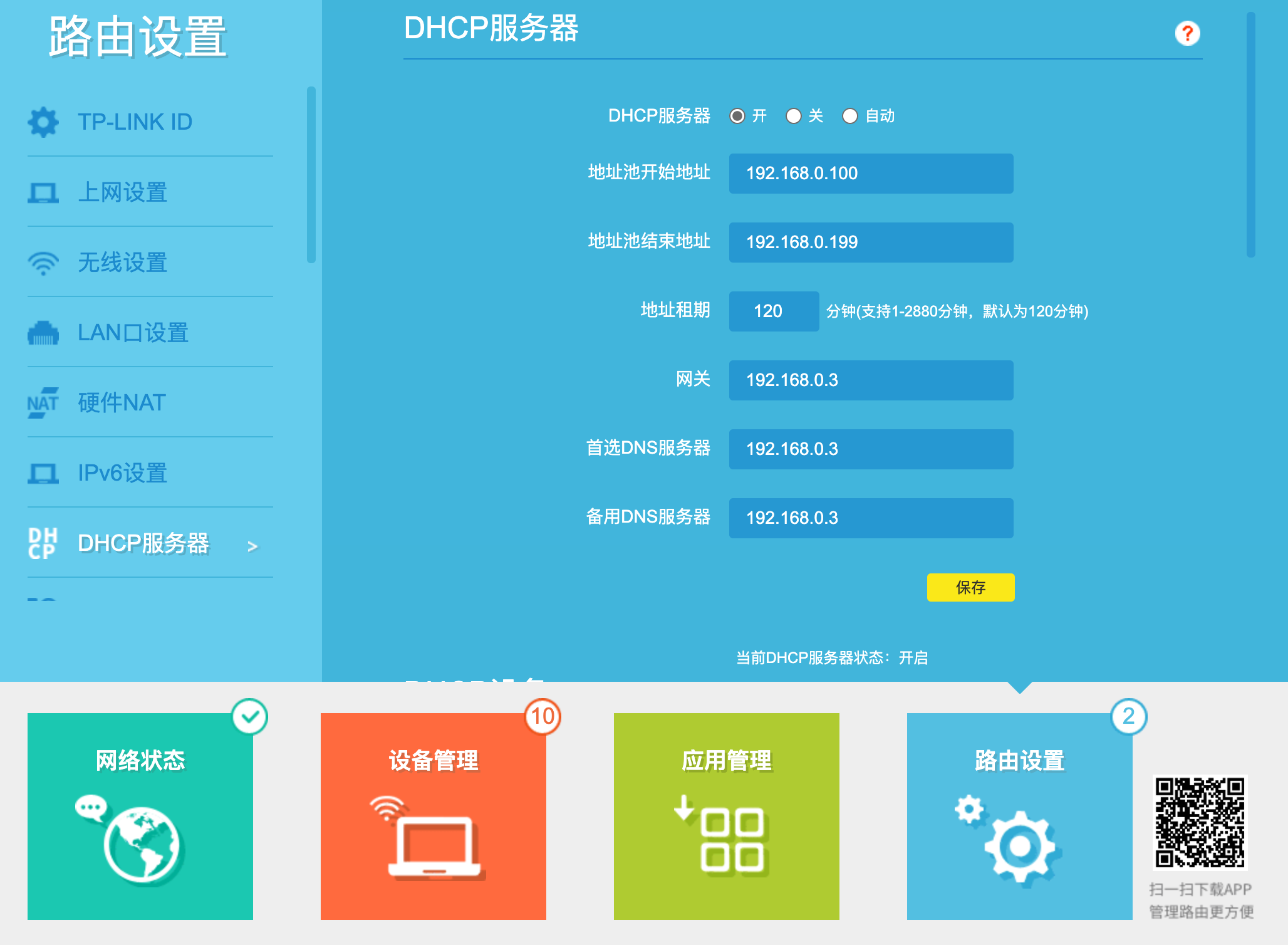
Click save, and all devices in the local network mesh can successfully go online.
One more thing
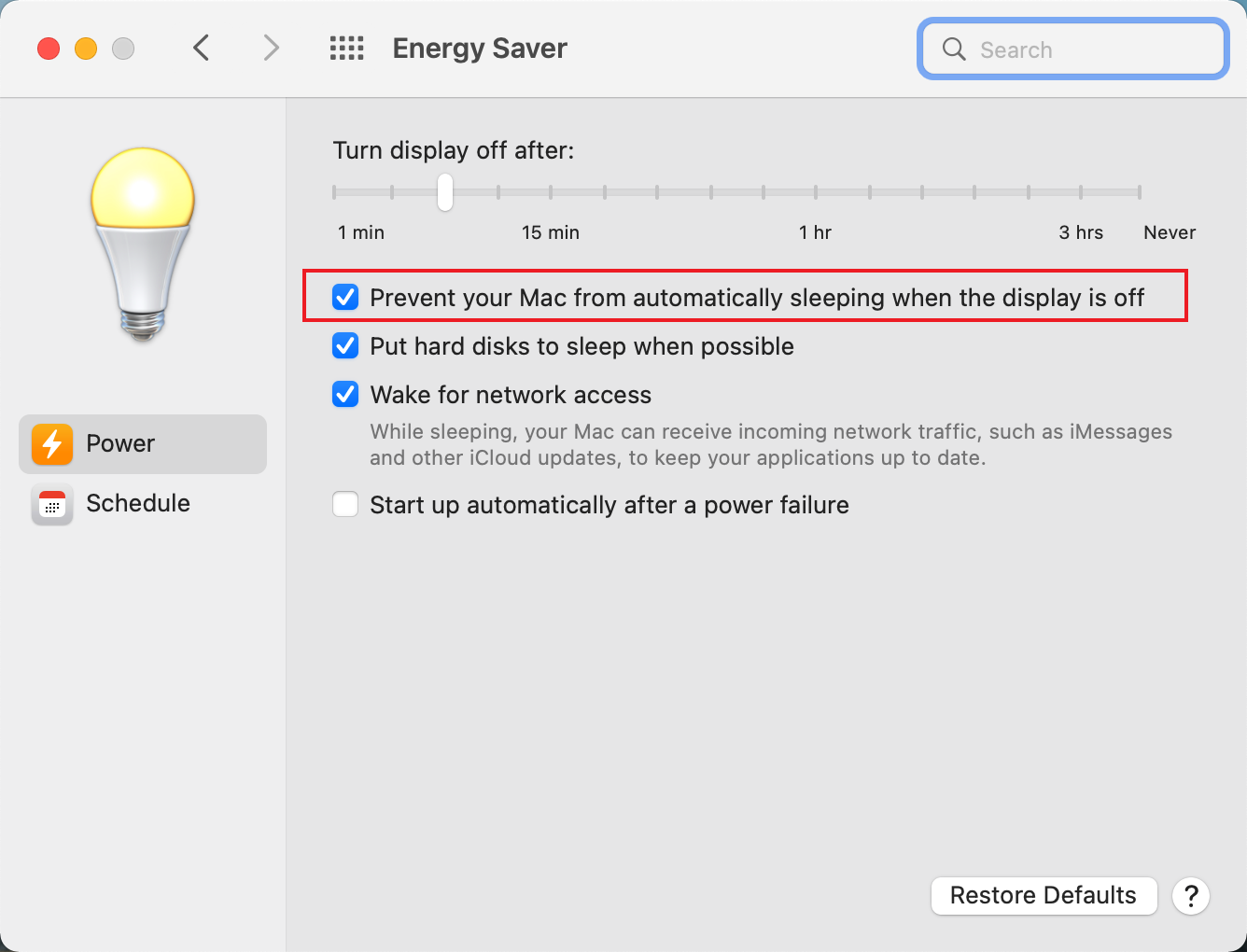
Mac Mini M1 as a router gateway becomes unresponsive after going to sleep, so make sure to check System Preference -> Energy Saver -> Prevent your Mac from automatically sleeping when the display is off.